You charged your phone to 100% before you left the house. By lunchtime it is at 30%. By evening it is dead — and you have barely used it.
Sound familiar?
A phone battery that drains too fast is one of the most frustrating tech problems of everyday life. It catches you off guard at the worst moments — in the middle of an important call, navigating somewhere new, or right when you need to make a payment. And the more you rely on your phone, the worse it feels when the battery lets you down.
The good news is that in most cases, a rapidly draining battery is not a hardware failure. It is a software or settings problem — and it can be fixed today, without spending a single naira or visiting a repair shop.
This guide explains the 10 real reasons your phone battery drains fast and gives you a clear, practical fix for each one. Whether you have an Android or an iPhone, everything here applies to you.
How Much Battery Drain Is Normal?
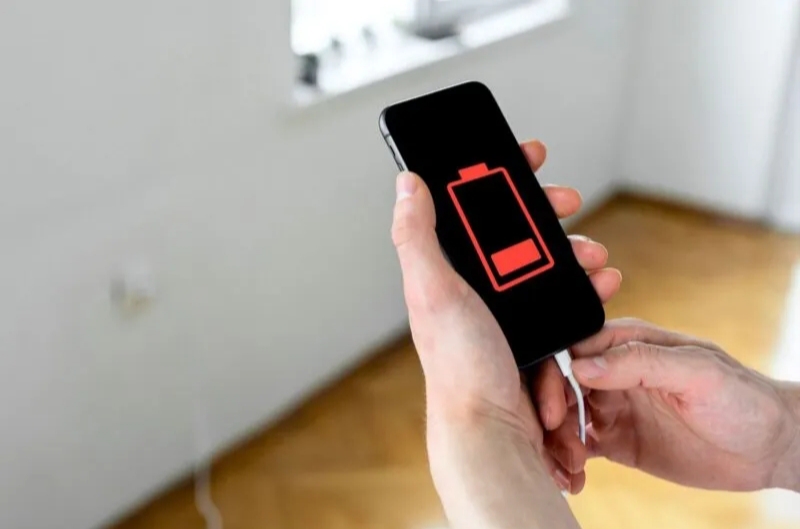
Before jumping into fixes, it helps to know what “normal” actually looks like. A healthy smartphone battery in 2026 should generally last:
- Light use (calls, messages, occasional browsing) — 1.5 to 2 full days on a charge
- Moderate use (social media, music, maps, some video) — 10 to 15 hours
- Heavy use (gaming, video streaming, camera, multiple apps) — 5 to 8 hours
If your battery is consistently dropping significantly faster than these benchmarks, something is draining it that should not be. Let’s find it.
Reason 1: Your Screen Brightness Is Too High
Your phone’s display is the single biggest battery consumer on the entire device. It requires more power than almost any other component — and if your brightness is set high all the time, it is quietly draining your battery throughout the day.
Many young people keep their screens at maximum brightness because it looks better. But the cost is significant — a screen at full brightness can use up to 30-40% more battery than the same screen at medium brightness.
The fix:
- Go to Settings → Display → Brightness and reduce it to around 50-60%
- Turn on Auto Brightness (also called Adaptive Brightness) — your phone will automatically adjust brightness based on the lighting around you, saving power in dim environments without you having to think about it
- On iPhone: Settings → Accessibility → Display & Text Size → Auto Brightness
This single change can add hours to your battery life each day.
Reason 2: Too Many Apps Running in the Background
Every app you open leaves a trace. Even after you press the home button and “close” it, many apps continue running quietly in the background — checking for updates, syncing data, tracking your location, or refreshing content. All of this consumes battery continuously.
Social media apps are particularly aggressive about this. Facebook, Instagram, TikTok, Twitter, and similar apps are designed to stay active in the background so they can send you notifications and keep content fresh. Each one running in the background is a tiny but constant drain on your battery.
The fix:
- On Android: Go to Settings → Battery → Battery Usage — you will see exactly which apps are consuming the most power. Tap any app and restrict background activity
- On iPhone: Go to Settings → General → Background App Refresh — turn this off entirely, or selectively disable it for apps that do not need to update in the background
- Regularly close apps that you are not actively using — swipe them away from your recent apps list
- Uninstall apps you no longer use. Even apps sitting idle can wake up periodically and consume resources
Reason 3: Your Location Services Are Always On
GPS tracking is one of the most battery-intensive functions on your phone. Every app that has permission to access your location is continuously — or periodically — pinging your location, which requires your GPS chip to be active and communicating with satellites.
The problem is that most people give location permission to apps that do not actually need it. Games. Shopping apps. Flashlight apps. Weather apps that you opened once. All of them, if given permanent location access, can drain your battery quietly and continuously throughout the day.
The fix:
- On Android: Go to Settings → Location → App Permissions — for each app, change location access from “Always” to “Only while using” or “Deny”
- On iPhone: Go to Settings → Privacy & Security → Location Services — review each app and change to “While Using” instead of “Always”
- Only give permanent location access to apps that genuinely need it — navigation, ride-hailing, and emergency apps
This one change frequently makes a dramatic difference in daily battery life, especially if you have dozens of apps installed.
Reason 4: Push Notifications from Every App
Every time an app sends you a notification, your phone wakes up, lights up the screen, vibrates, and plays a sound. Multiply this by dozens of apps sending notifications throughout the day, and you have a significant cumulative drain on your battery — even if each individual notification seems trivial.
The fix:
- On Android: Settings → Notifications → App Notifications — go through each app and turn off notifications for anything non-essential
- On iPhone: Settings → Notifications — select each app and adjust notification settings
- Keep notifications active only for apps where real-time alerts genuinely matter: calls, messages from contacts, banking, and navigation
- Turn off notifications entirely for social media, news, entertainment, and shopping apps — check them when you choose to, not when they demand your attention
This also directly reduces the digital burnout we discussed in our Lifestyle section — your battery and your mental health both benefit.
Reason 5: Your Screen Timeout Is Set Too Long
Every second your screen stays on unnecessarily is battery being wasted. If your screen timeout is set to 5 minutes, your phone’s display could be on for minutes at a time after you put it down — burning power while you are not even looking at it.
The fix:
- On Android: Settings → Display → Screen Timeout — set it to 30 seconds or 1 minute maximum
- On iPhone: Settings → Display & Brightness → Auto-Lock — set to 30 seconds or 1 minute
This is one of the simplest and most overlooked battery-saving changes you can make.
Reason 6: Your Phone Is Constantly Searching for Wi-Fi and Bluetooth
When your Wi-Fi or Bluetooth is turned on but not connected to anything, your phone continuously scans for available networks and devices. This scanning process runs in the background and consumes battery — even when you are not actively using either feature.
If you are in an area with poor Wi-Fi coverage, your phone works even harder to find a signal, draining the battery faster.
The fix:
- Turn off Wi-Fi when you are in an area where you cannot connect to a trusted network
- Turn off Bluetooth when you are not actively using wireless earphones, speakers, or other Bluetooth devices
- On most Android phones, you can quickly toggle these from the notification shade (pull down from the top of your screen)
- On iPhone, swipe down from the top right to access Control Centre and toggle both off with one tap
Reason 7: You Are Using Mobile Data Instead of Wi-Fi
Mobile data requires your phone to maintain a constant connection to cell towers — and depending on your signal strength, this can be very battery-intensive. When your signal is weak, your phone works harder to maintain the connection, consuming significantly more power.
A strong Wi-Fi connection is almost always more battery-efficient than mobile data for the same tasks. Streaming, browsing, downloading — all of these consume less battery over Wi-Fi than over mobile data.
The fix:
- Connect to trusted Wi-Fi networks whenever they are available
- Avoid using mobile data for heavy tasks like video streaming when your signal is weak — this is the worst combination for battery life
- If you have poor signal in a location and are not actively making calls, consider switching to Airplane Mode temporarily to stop your phone from constantly searching for a cell signal
Reason 8: Your Apps and Operating System Are Out of Date
Outdated apps and an outdated operating system can contain bugs that cause abnormal battery drain. Developers regularly release updates that fix inefficiencies, memory leaks, and background process issues — and if you are not updating your apps, you may be running buggy code that is quietly draining your battery.
The fix:
- On Android: Open Google Play Store → tap your profile icon → Manage Apps and Devices → Update all
- On iPhone: Open App Store → tap your profile icon → scroll down to see available updates → Update All
- Update your operating system: Settings → General → Software Update (iPhone) or Settings → System → System Update (Android)
- Enable automatic updates so you always have the latest, most efficient versions
Reason 9: Your Battery Is Old and Degraded
If you have had your phone for more than two years and nothing else on this list seems to be the issue, your battery itself may simply be aging. Lithium-ion batteries — the type used in virtually every smartphone — degrade over time. Each full charge cycle slightly reduces the battery’s maximum capacity, and after 500–800 charge cycles (roughly 1.5 to 2 years of daily use), many batteries are operating at significantly less than their original capacity.
A battery at 80% health will never perform like a new battery, regardless of what settings you change.
How to check your battery health:
- iPhone: Settings → Battery → Battery Health & Charging — if maximum capacity is below 80%, Apple recommends servicing the battery
- Android: Many Android phones have a battery health indicator in Settings → Battery → Battery Health, or you can dial ##4636## to access a diagnostic menu (works on many Samsung and other Android devices)
The fix:
If your battery health is below 80%, replacing the battery is the most cost-effective solution. Battery replacement at an authorised service centre typically costs a fraction of buying a new phone, and it can restore your device’s performance to near-original levels.
Reason 10: Live Wallpapers and Always-On Display
Animated or live wallpapers — wallpapers that move or respond to your touch — look impressive but consume battery continuously. Similarly, features like Always-On Display (which keeps the screen partially lit even when the phone is locked) drain the battery faster than a standard static wallpaper and dark lock screen.
The fix:
- Switch to a static wallpaper — Settings → Wallpaper → choose a still image
- Disable Always-On Display if your phone has it: Settings → Display → Always On Display → Off
- Use a dark or black wallpaper if your phone has an OLED screen — OLED screens do not light up individual pixels that are displaying black, so a black wallpaper uses significantly less battery than a bright or colourful one
Quick Battery-Saving Checklist
Here are all the key fixes summarised for quick reference:
- ✅ Reduce screen brightness to 50-60% and enable auto brightness
- ✅ Restrict background app activity for social media and non-essential apps
- ✅ Change location access to “While Using” for all non-essential apps
- ✅ Turn off notifications for apps that do not need real-time alerts
- ✅ Set screen timeout to 30 seconds or 1 minute
- ✅ Turn off Wi-Fi and Bluetooth when not actively using them
- ✅ Use Wi-Fi instead of mobile data whenever possible
- ✅ Keep apps and your operating system updated
- ✅ Check battery health — replace if below 80%
- ✅ Switch to a static, dark wallpaper and disable Always-On Display
One More Powerful Tip: Use Battery Saver Mode
Both Android and iPhone have built-in battery saver or low power modes that automatically apply multiple battery-saving settings at once. These modes reduce background activity, lower screen brightness, and limit performance-intensive functions to extend battery life.
- Android: Settings → Battery → Battery Saver → Turn on now (or set to activate automatically at a certain percentage)
- iPhone: Settings → Battery → Low Power Mode
You do not have to wait until your battery is critically low to use these modes. Enabling Battery Saver at 50% during a long day out can help you get through the rest of the day without charging.
When to See a Professional
If you have applied all of the fixes above and your battery is still draining abnormally fast, the issue may be:
- A hardware fault in the battery or charging circuit
- A malfunctioning app that cannot be identified through normal settings
- A software corruption that requires a factory reset
In these cases, take your phone to an authorised service centre for diagnosis. Always back up your data before any professional repair.
Final Thought
A draining battery is rarely a reason to buy a new phone. In the vast majority of cases, it is a settings problem — and the fixes are free, simple, and take less than ten minutes to apply.
Work through this list one step at a time. Most people who apply even five of these ten fixes see a significant improvement in battery life within a day.
Your phone should work for you — not the other way around.
Related Tech Fixes:
- 👉 Why Is My Phone Overheating and How to Fix It
- 👉 Why WhatsApp Isn’t Sending Messages and How to Fix It