“Storage Almost Full.”
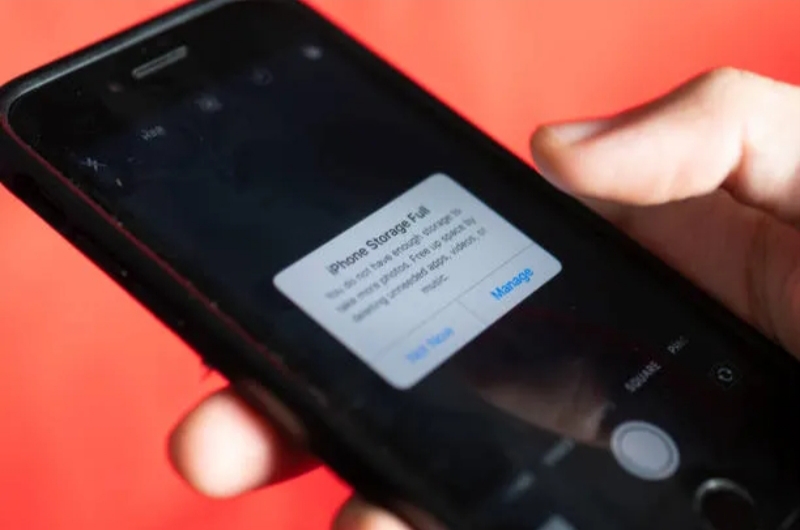
Three words that appear at the worst possible moment. You are trying to take a photo at an event. You want to download an important file. An app needs to update and cannot. And your phone simply refuses to cooperate.
Running out of phone storage is one of the most universal tech frustrations among young people in 2026. Between photos, videos, apps, downloads, and the hidden files that pile up invisibly over time, even phones with 128GB of storage can fill up faster than most people expect.
The knee-jerk response is to start deleting photos — but that is almost never the right first move. Most people do not realise how much space is being taken up by things they do not even know are there: cached app data, duplicate files, WhatsApp media, old downloads, and system junk that accumulates silently over months.
This guide shows you exactly how to find what is eating your storage and free up significant space fast — on both Android and iPhone — without losing a single photo you care about.
First: Find Out What Is Actually Using Your Storage
Before deleting anything, you need to know where your storage is going. Both Android and iPhone have built-in tools that show you a breakdown of what is using your storage.
On Android:
Settings → Storage → you will see a visual breakdown showing Apps, Images, Video, Audio, Documents, and Other. Tap each category to see specifics.
On iPhone:
Settings → General → iPhone Storage → scroll down to see a full list of apps sorted by size, plus a bar chart showing what is using your storage across different categories.
Spend one minute looking at this breakdown before doing anything else. It tells you exactly where to focus your efforts — and the answer often surprises people.
Now let us go through each category systematically.
Fix 1: Clear App Cache (Android) — The Quickest Win
On Android, every app stores temporary files called cache — data it saves locally to load faster next time you open it. This is useful, but it accumulates to significant sizes over time. A social media app used daily can build up hundreds of megabytes or even gigabytes of cached data without you realising it.
Cache is completely safe to delete. It is not your personal data — it is just temporary files the app created to speed up its performance. The app will rebuild it over time, but clearing it gives you an immediate space win.
How to clear cache on Android:
- Go to Settings → Apps (or App Management)
- Tap on any app
- Tap Storage
- Tap Clear Cache
- Repeat for your most-used apps — especially browsers, social media apps, and streaming services
Priority apps to clear cache from:
- Chrome or your default browser (can accumulate 500MB+ easily)
- Instagram, Facebook, TikTok, Snapchat
- YouTube (if you browse a lot of content)
- Google Maps (especially if you use offline maps)
- Spotify or other music apps
You can also use Settings → Storage → Cached Data → Clear on older Android versions to clear all app caches at once.
Note: iPhone does not allow you to clear individual app caches from settings — but the alternatives below achieve the same result.
Fix 2: Deal with WhatsApp — The Hidden Storage Killer
For most young Nigerians, WhatsApp is the biggest single cause of storage problems — and it is almost always an invisible one.
Every photo, video, voice note, document, and GIF that anyone sends to you in any WhatsApp chat or group is automatically downloaded to your phone by default. If you are in 10 active group chats, and each group sends 20 videos a day, the storage accumulation is extraordinary — and it happens completely silently in the background.
WhatsApp stores all of this in a dedicated folder on your phone. Most people are shocked when they discover how large it has become.
How to check and clear WhatsApp storage:
Option 1 — Through WhatsApp itself:
- Open WhatsApp → Settings → Storage and Data → Manage Storage
- You will see your total WhatsApp storage usage and a list of chats sorted by size
- Tap any chat to review and delete large files
- Use the top section to delete large files across all chats at once — tap “Large Files” or filter by video/photo
Option 2 — Through your phone’s file manager:
- Open your File Manager app
- Navigate to Internal Storage → WhatsApp → Media
- You will see folders for images, videos, voice notes, and documents
- Open each folder and delete files you do not need
Preventing future WhatsApp storage buildup:
- In WhatsApp → Settings → Storage and Data → Media Auto-Download — change all options (Photos, Audio, Video, Documents) from “Wi-Fi and Mobile Data” to either “Wi-Fi only” or “Off”
- This stops WhatsApp from automatically downloading everything — you can still manually download anything you specifically want to save
This single change can free up gigabytes of storage and prevent the problem from recurring.
Fix 3: Move Photos and Videos to Google Photos or iCloud
Your personal photos and videos are almost certainly the largest and most valuable files on your phone. The good news is that you do not have to delete them to free up space — you can move them to cloud storage and keep them safe and accessible forever.
For Android — Google Photos:
- Download Google Photos from the Play Store if you do not have it
- Sign in with your Google account
- Google Photos automatically backs up all your photos and videos at high quality — for free
- Once your photos are backed up (you will see a confirmation), tap the three lines → Free Up Space
- Google Photos will identify all photos that have been successfully backed up and offer to delete them from your phone’s local storage
- Your photos are not gone — they are in your Google account, accessible from any device, forever
For iPhone — iCloud Photos:
- Settings → your name → iCloud → Photos → turn on iCloud Photos
- Then Settings → your name → iCloud → Photos → turn on Optimise iPhone Storage
- This automatically keeps full-resolution versions in iCloud and stores smaller, lower-file-size versions on your phone — freeing up local storage while keeping all your photos accessible
This approach typically frees up between 5GB and 30GB for most users — without deleting a single photo.
Fix 4: Delete Apps You No Longer Use
Most people have apps on their phones that they downloaded once, used a few times, and have not opened in months. Every installed app takes up storage space — not just its initial download size, but also the data it accumulates over time through use.
How to identify unused apps:
On Android:
Settings → Apps — scroll through the list. Sort by “Size” to see which apps are taking the most space. Think honestly about which ones you have not used in the past month.
On iPhone:
Settings → General → iPhone Storage — the list is sorted by size. iOS also shows “Last Used” dates for many apps, making it very easy to identify what you have not touched in months.
What to do:
- Delete any app you have not used in more than a month
- For apps you want to keep but use rarely, consider reinstalling them when you need them — this is faster than it sounds and saves ongoing storage
- On iPhone, you can also use Offload App instead of Delete — this removes the app but keeps its data, so if you reinstall it later your settings and data are restored
Fix 5: Clear Your Downloads Folder
Every file you download — documents, PDFs, APKs, images saved from browsers, email attachments — goes to your Downloads folder. Most people never check this folder after downloading something, and over time it can accumulate gigabytes of files that are no longer needed.
On Android:
- Open your File Manager app
- Navigate to Downloads
- Sort by size or date and delete everything you no longer need
- Pay particular attention to large files like APK installation files — once an app is installed, the APK file serves no purpose and can be safely deleted
On iPhone:
- Open the Files app
- Tap On My iPhone → Downloads
- Review and delete files you no longer need
This is one of the fastest and safest ways to free up storage — most people find significant space here with zero risk of losing anything important.
Fix 6: Manage Your Music and Streaming App Downloads
If you use Spotify, Apple Music, Audiomack, Boomplay, YouTube Music, or any other streaming app and you have downloaded music, podcasts, or videos for offline use, these can accumulate to several gigabytes over time — especially if your tastes have changed and you are no longer listening to older downloaded content.
For Spotify:
Open Spotify → Settings → Storage → Delete Cache, or go to Your Library → Downloaded → remove playlists or albums you no longer listen to offline
For YouTube (Premium offline downloads):
Open YouTube → Library → Downloads → delete videos you have already watched
For any streaming app:
Check the app’s settings for a “Storage” or “Downloads” section and remove content you no longer need offline. You can always re-download anything later when you have Wi-Fi.
Fix 7: Clear Browser Data
If you use Chrome, Safari, or any other browser regularly, it builds up a significant amount of stored data over time — cached web pages, cookies, browsing history, and saved form data. On a heavily used browser, this can reach several hundred megabytes.
On Chrome (Android or iPhone):
- Open Chrome → tap the three dots (menu) → Settings → Privacy and Security → Clear Browsing Data
- Select Cached Images and Files and Cookies and Site Data
- Change the time range to “All Time”
- Tap Clear Data
On Safari (iPhone):
Settings → Safari → Clear History and Website Data
This clears browsing cache without affecting your saved passwords or bookmarks.
Fix 8: Check for Duplicate Photos
Most people unknowingly have hundreds — sometimes thousands — of duplicate photos on their phones. These happen when photos are downloaded from WhatsApp or other apps and also saved to your gallery separately, when burst photos are taken and all retained, or when photos are backed up locally after being shared.
On iPhone:
iOS 16 and later has a built-in Duplicates feature: Photos app → Albums → scroll down → Duplicates. You can merge or delete duplicates directly.
On Android:
Use Google Photos → Library → Utilities → Free Up Space — it identifies similar and duplicate photos. You can also use a free app like Duplicate Files Fixer to scan for and remove duplicates across your entire phone.
Removing duplicates can sometimes free up several gigabytes on a phone that has been used for a year or more.
Fix 9: Delete Old Conversations and Message Attachments
SMS and messaging apps accumulate media over time — photos, videos, voice notes, and stickers sent within conversations can collectively take up significant storage, particularly if you have had long-running conversations with groups or individuals who share media frequently.
On iPhone:
Settings → General → iPhone Storage → Messages — you will see how much space your messages are using. You can enable auto-delete for old messages: Settings → Messages → Keep Messages → set to 1 Year or 30 Days.
On Android:
Open your SMS app → settings → look for storage management options. Alternatively, use a file manager to navigate to the messages media folder and delete attachments from old conversations you no longer need.
Fix 10: Factory Reset as a Last Resort
If you have worked through all of the above and your phone is still critically low on storage, or if it is running significantly slower than it should, a factory reset can be considered as a last resort.
A factory reset wipes your phone completely and returns it to its original out-of-box state. It removes everything — apps, settings, saved data, and files — but it also removes all the junk, fragmented data, and corrupted files that accumulate over years of use.
Before doing a factory reset, you must:
- Back up all your photos to Google Photos or iCloud
- Note down any important passwords, accounts, and app lists
- Back up contacts (export to Google account or save to SIM)
- Export WhatsApp chat history if you want to keep your messages
This is not a step to take lightly, but for phones that have been used for 3+ years without ever being reset, it can genuinely restore performance and storage efficiency significantly.
Quick Summary: How to Free Up Space Fast
Here is your action plan in order of ease and impact:
| Step | What to Do | Estimated Space Saved |
|---|---|---|
| 1 | Clear app cache (Android) | 500MB – 3GB |
| 2 | Clear WhatsApp media | 1GB – 10GB+ |
| 3 | Move photos to Google Photos/iCloud | 5GB – 30GB+ |
| 4 | Delete unused apps | 500MB – 5GB |
| 5 | Clear Downloads folder | 200MB – 2GB |
| 6 | Remove offline streaming downloads | 500MB – 5GB |
| 7 | Clear browser cache | 100MB – 500MB |
| 8 | Remove duplicate photos | 500MB – 3GB |
| 9 | Delete old message attachments | 100MB – 1GB |
Work through this list from top to bottom and you will recover significant storage in under 30 minutes — without losing anything that matters.
Preventing the Problem From Coming Back
Once you have freed up space, here is how to keep it that way:
- Turn off WhatsApp auto-download — the single most impactful prevention step
- Enable Google Photos or iCloud auto-backup and periodically use “Free Up Space”
- Set a monthly reminder to check your storage and clear cache
- Review your apps every 3 months and delete anything unused
- Check your Downloads folder monthly and clear it out
Storage management takes about five minutes a month once you have good habits in place. The time you invest now saves you the frustration of that “Storage Almost Full” notification appearing at the worst possible moment.
Final Thought
A full phone is not a reason to buy a new one. It is a signal that your phone needs some housekeeping — and most of what is filling it up is data you neither need nor remember.
Start with WhatsApp. Move your photos to the cloud. Clear your cache. In most cases, you will recover more than enough space to keep your phone running smoothly for a long time to come.
Your phone has more room than you think — it just needs a little help finding it.
Related Tech Fixes:
- 👉 Why Is My Phone Battery Draining So Fast? (10 Fixes)
- 👉 Why Is My Phone Overheating and How to Fix It
- 👉 Why WhatsApp Isn’t Sending Messages and How to Fix It